
ChatGPT Plus/Pro Connector
Connect ChatGPT directly to Gosset's comprehensive database of 100,000+ drug assets through the Model Context Protocol (MCP).
Requirements
- ChatGPT Plus or Pro subscription
Business/Enterprise Users
If you have a ChatGPT Business or Enterprise subscription, see the ChatGPT Business/Enterprise Connector guide instead.
Setup Instructions
Step 1: Access ChatGPT
Go to chatgpt.com and sign in with your Plus, Pro, Edu, or Business account.
You'll see the ChatGPT 5 welcome screen with the main chat interface.
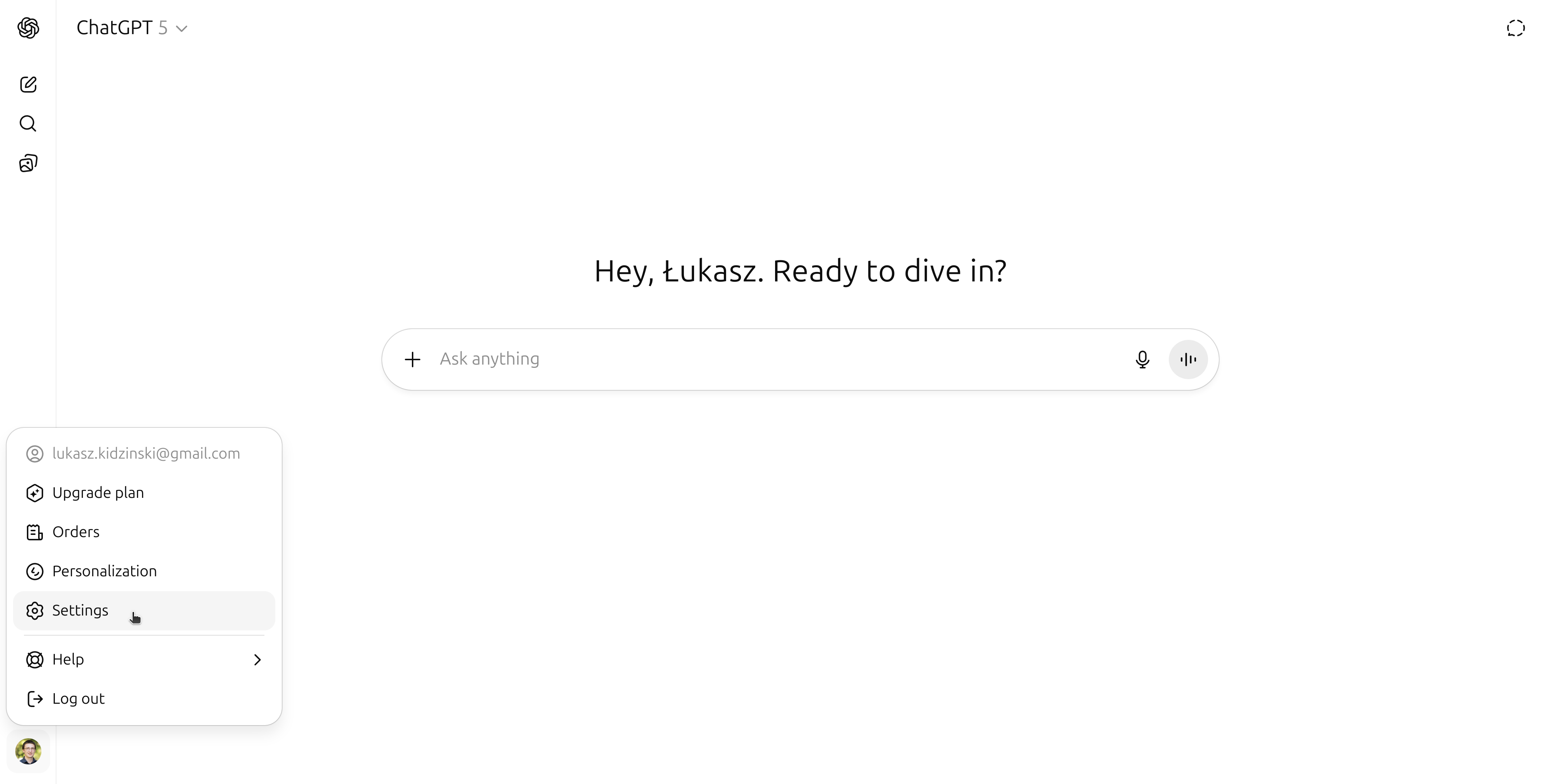
Step 2: Navigate to Settings
Click on your profile icon in the bottom left corner, then select Settings from the dropdown menu.

The settings menu will appear with various options including "Apps & Connectors".
Step 3: Open Apps & Connectors
In the settings panel, click on "Apps & Connectors" in the left sidebar navigation.
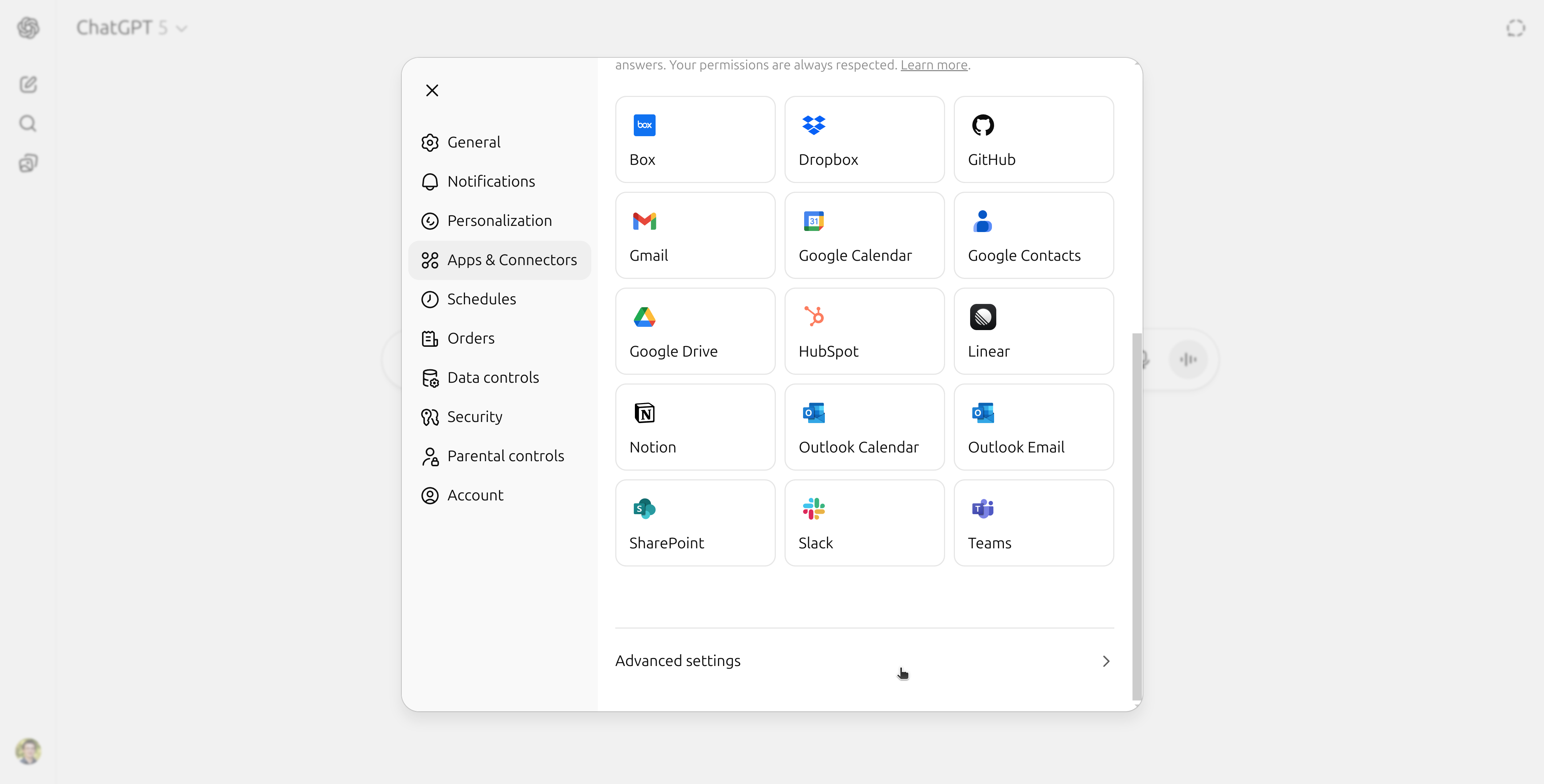
You'll see the Apps & Connectors interface with sections for Apps and Connectors.
Step 4: Enable Developer Mode
Scroll down to the "Connectors" section and click on "Advanced settings" at the bottom. Then toggle "Developer mode" to ON.
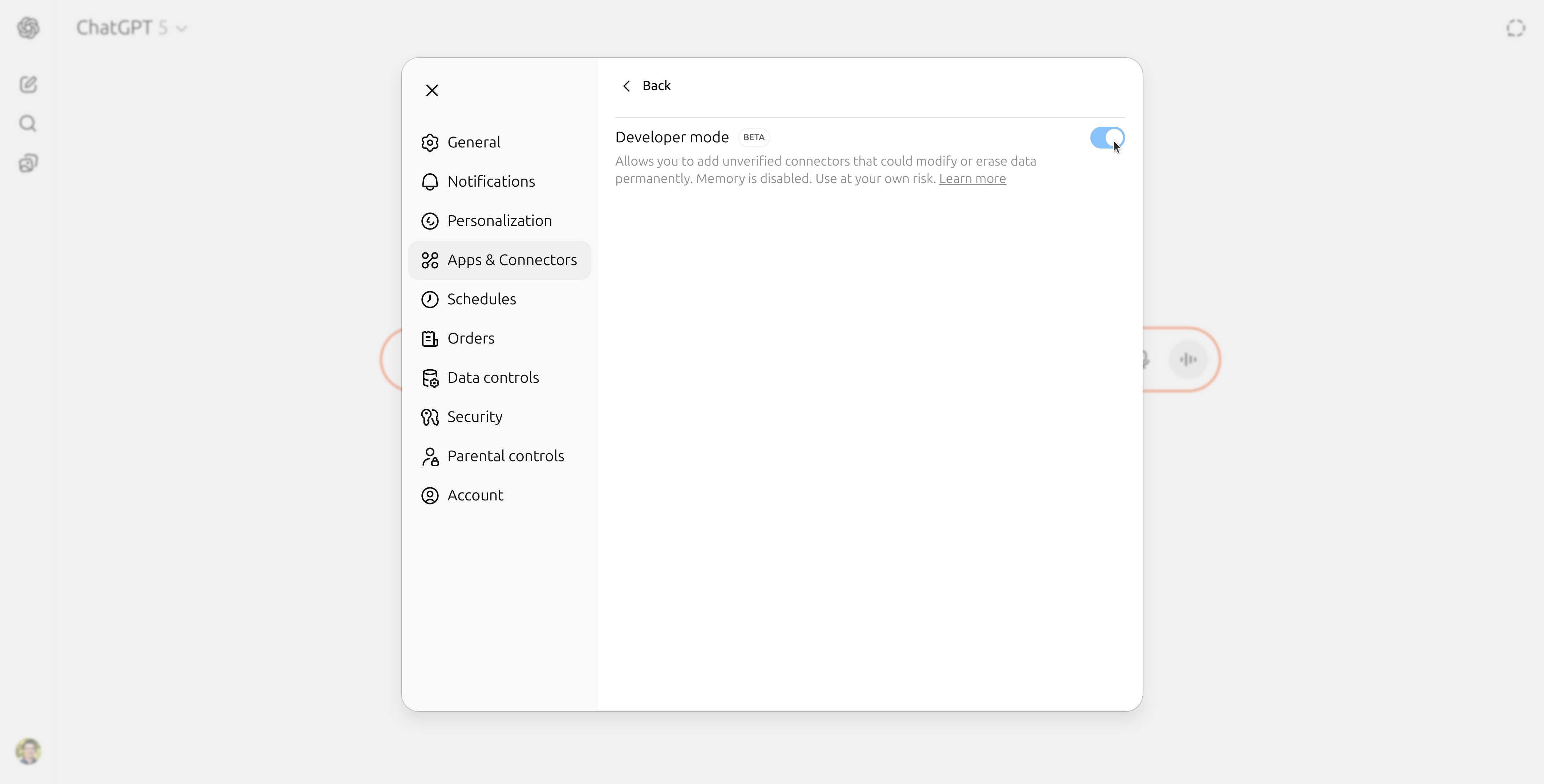
Important
Developer mode allows you to add unverified connectors. Make sure you understand the risks before enabling it.
Step 5: Create New Connector
Go back to the main Connectors tab and click the "Create" button in the top right corner of the Connectors section.

A modal window will appear for creating a new connector.
Step 6: Configure Gosset Connector
Fill in the connector details in the modal:
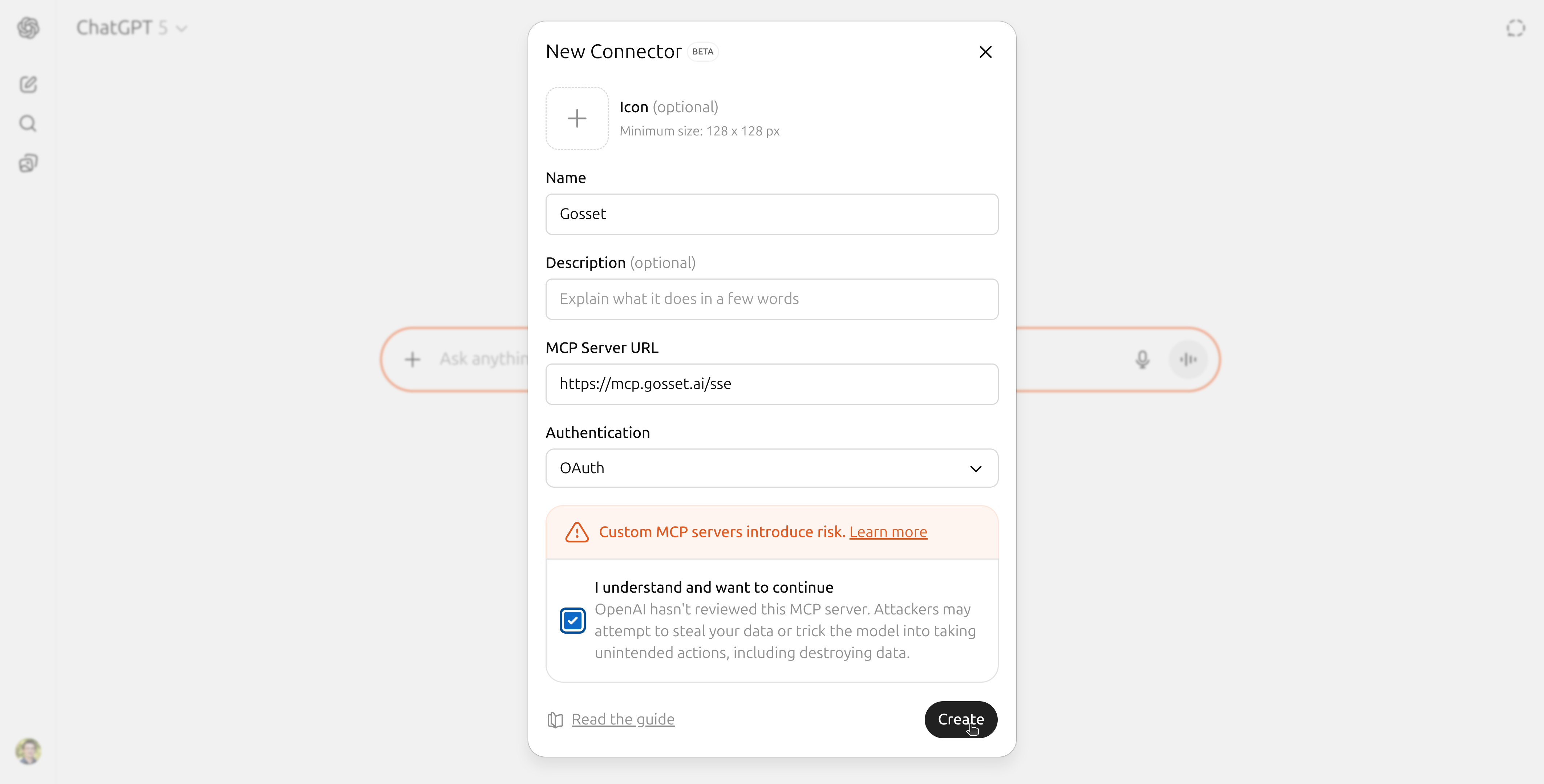
- Name:
Gosset - MCP Server URL:
https://mcp.gosset.ai/sse - Authentication: Select
OAuthfrom the dropdown - Description (optional): Add a description if desired
Check the box "I understand and want to continue" to acknowledge the risks, then click "Create".
Step 7: Verify Connector is Enabled
After creating the connector, you should see "Gosset (DEV)" listed under "Enabled apps & connectors".

The connector will appear with a blue square icon containing a white "G" and a "DEV" tag.
Step 8: Enable Connector in Chat
Start a new chat or open an existing conversation. Click the "+" icon in the chat input field to open the menu.
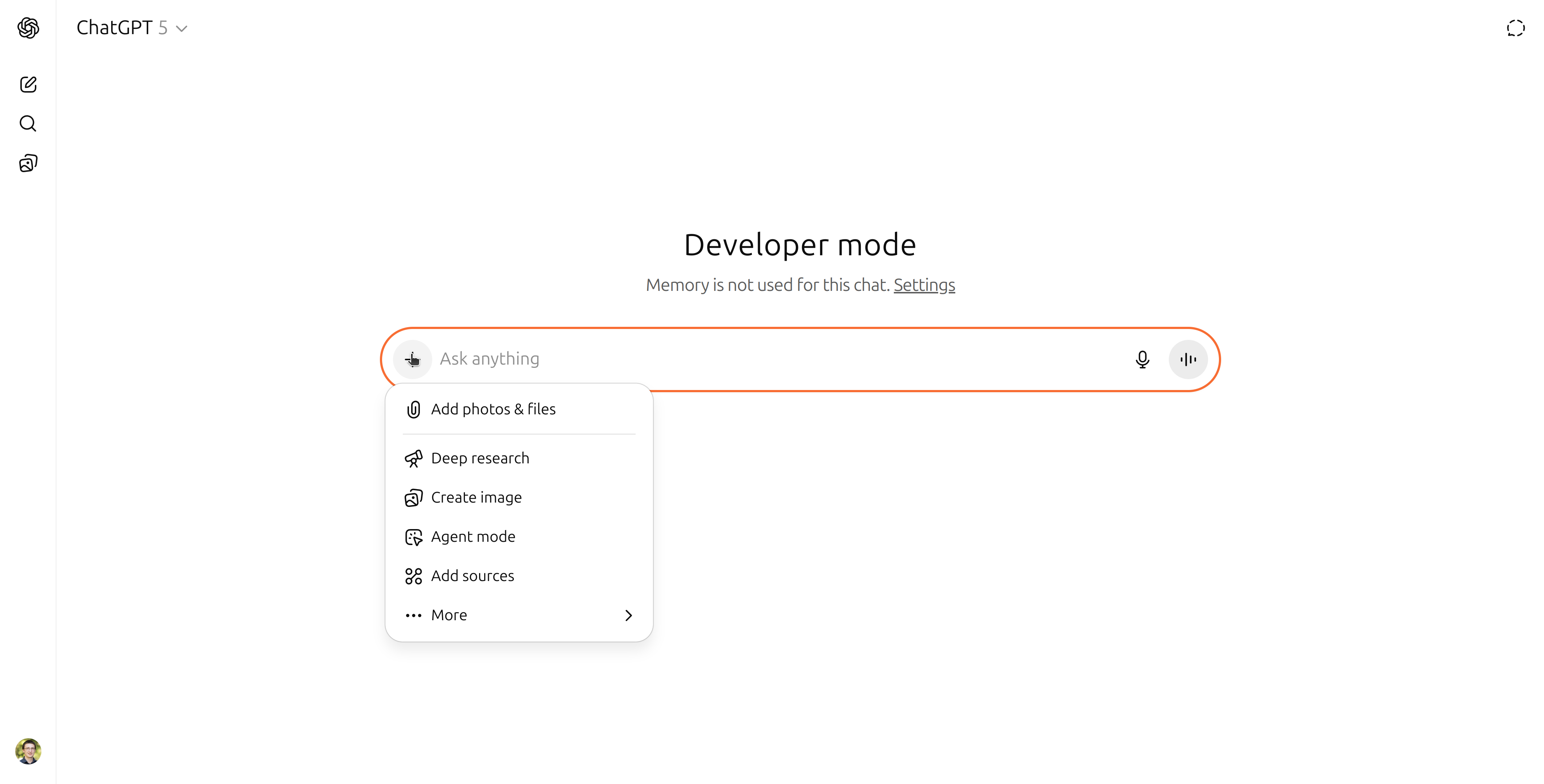
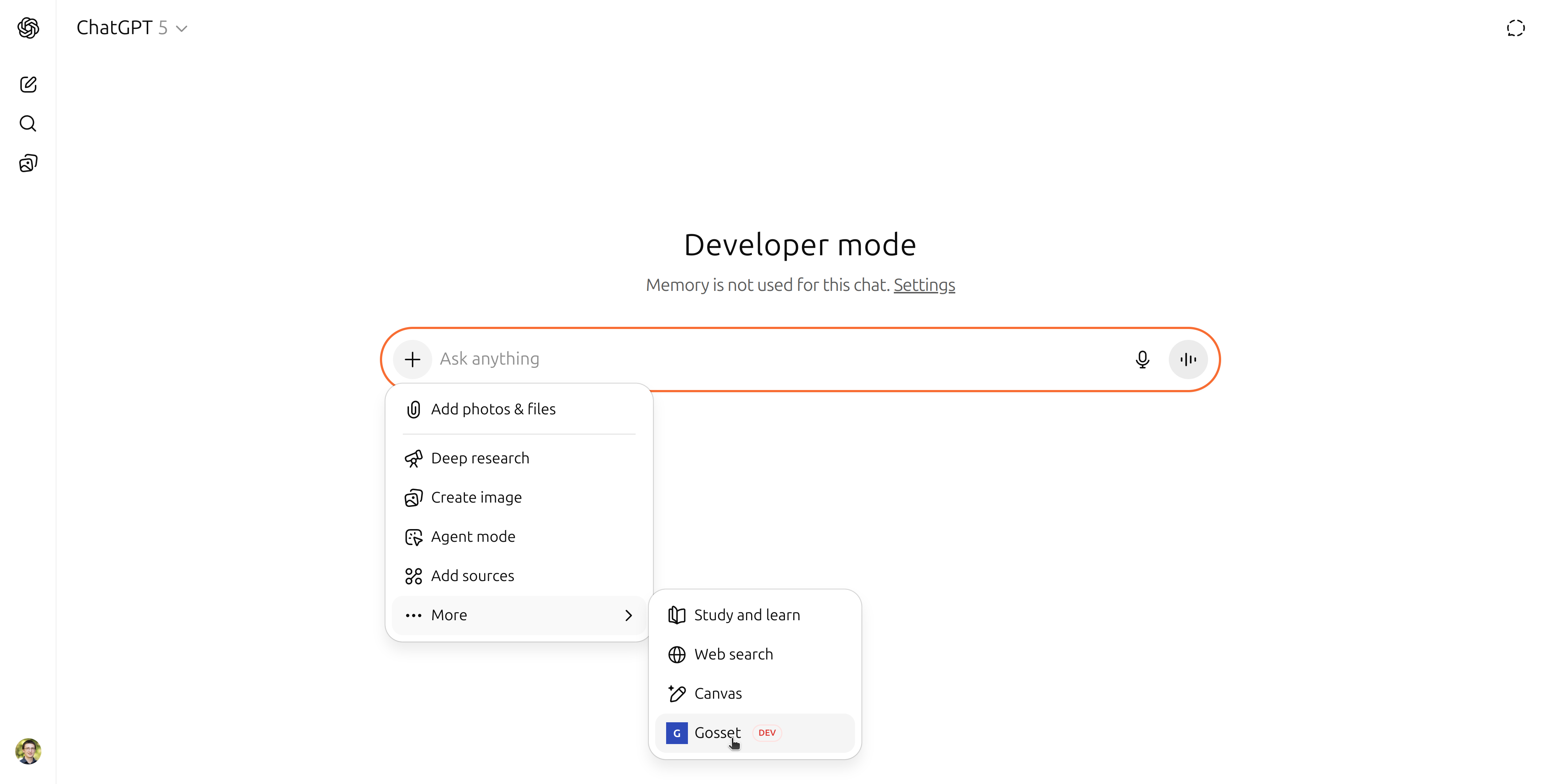
Navigate to "... More" → "Gosset DEV" to enable the connector in your chat.
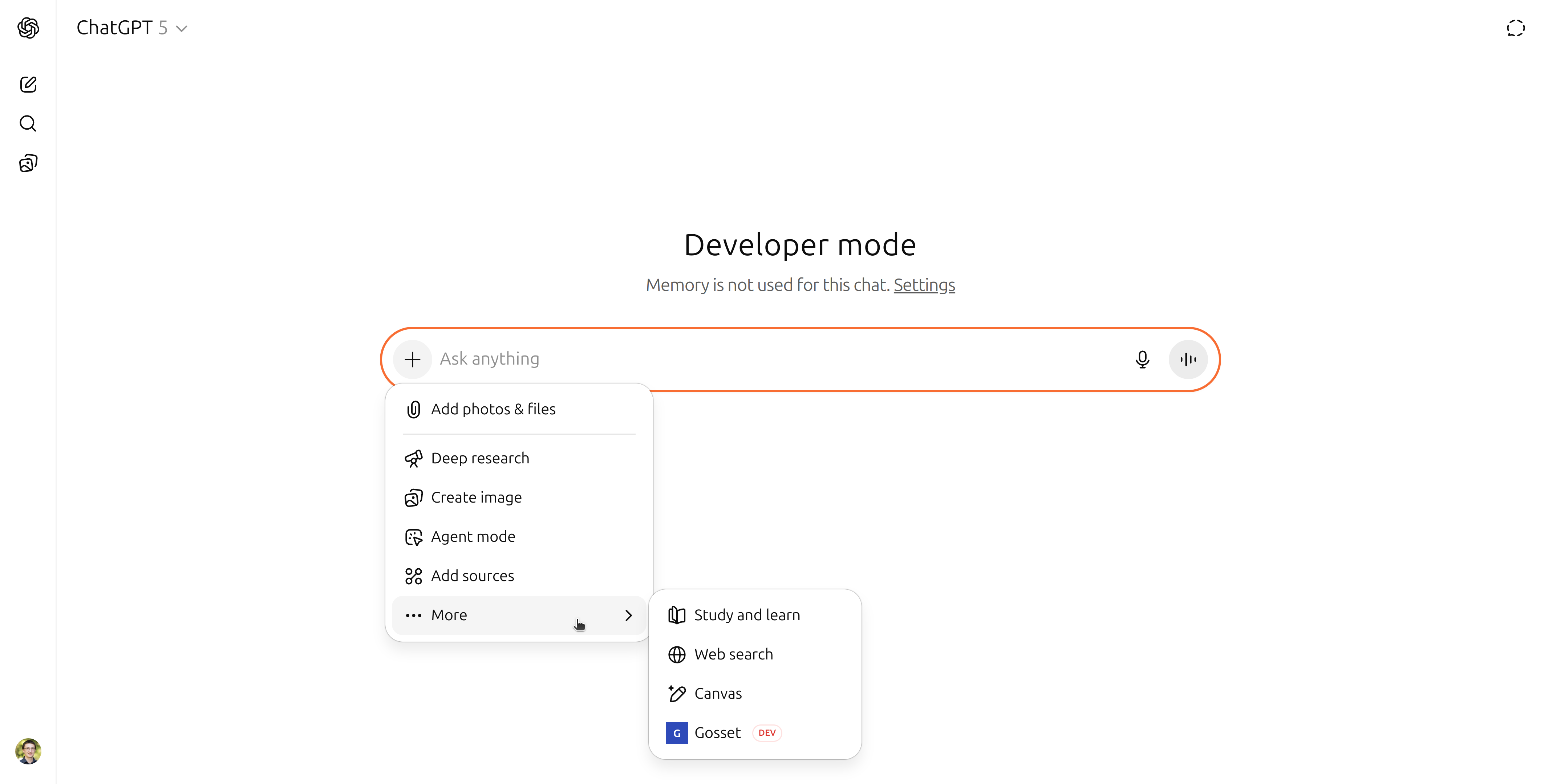
Alternatively, you can use Gosset with Deep Research:
- Click the "+" icon
- Select "Deep research"
- Click "Sources" → "Gosset"
Step 9: Use Gosset in Your Chat
Once enabled, you'll see a "+ G Gosset" button appear in the chat input field. You can now ask questions that will use Gosset's database.
Developer Mode Indicator
When Developer mode is enabled, you'll see a "Developer mode" banner at the top of your chat interface, indicating that you're using custom connectors. Memory is disabled in Developer mode.
Type your query and send it. ChatGPT will use the Gosset connector to retrieve drug information.
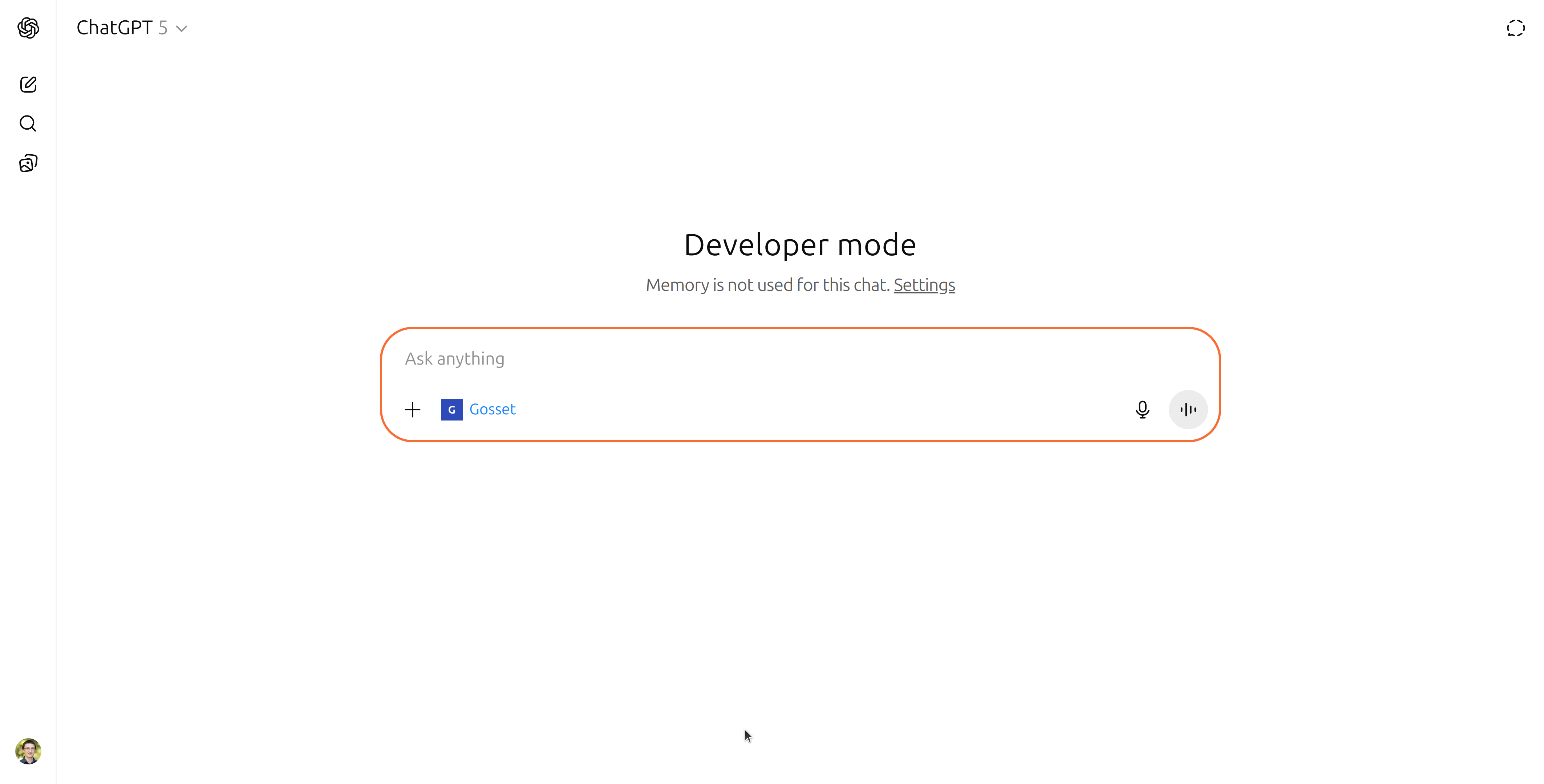
You can see the "+ G Gosset" button is active in the input field, indicating that Gosset will be used to answer your query. Here's an example query: "Run Gosset agent to analyze the competitive landscape of RA."
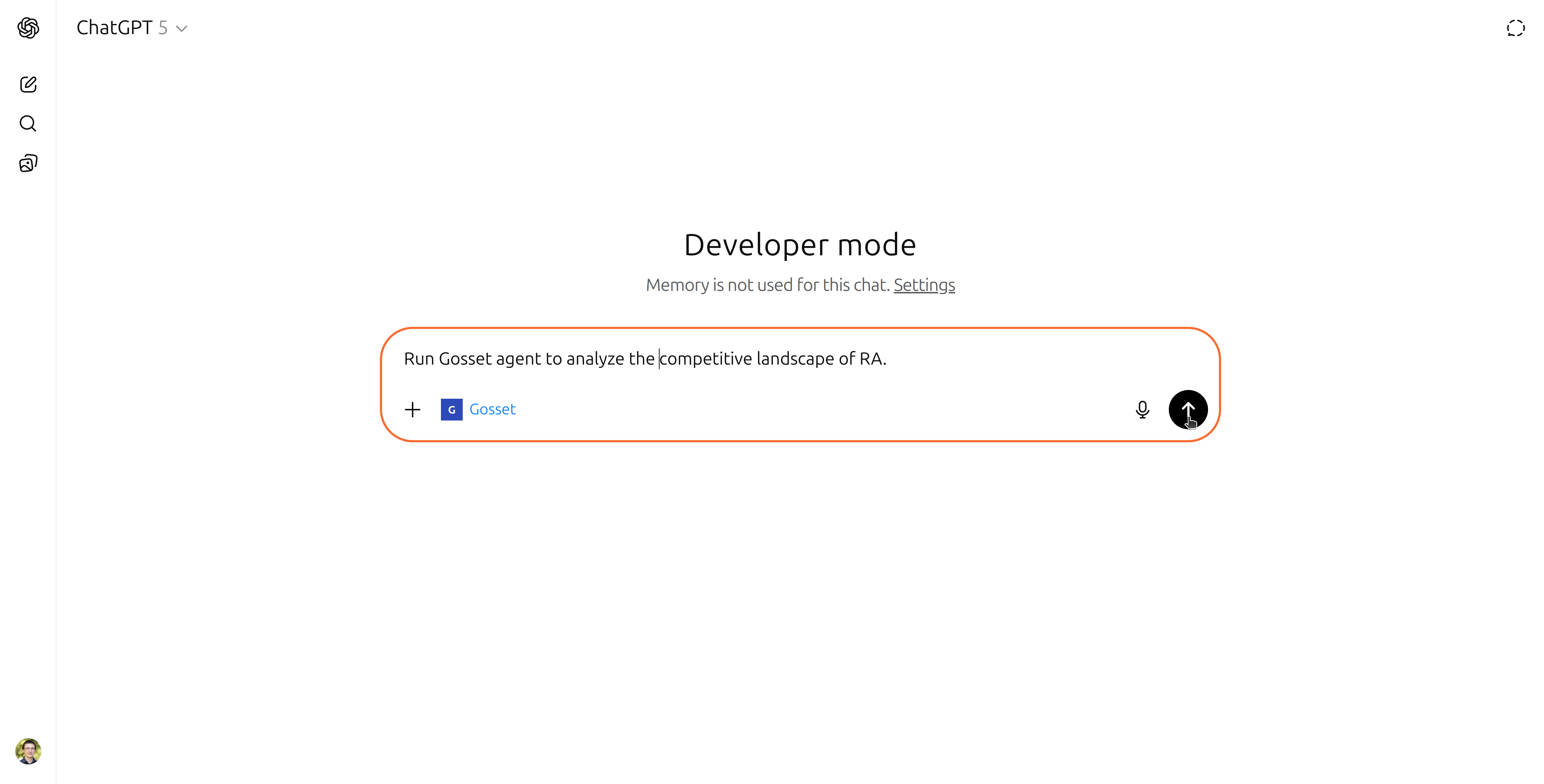
The Developer mode banner at the top confirms that custom connectors are active. The Gosset button remains visible in the input field, ready for your next query.
Usage Examples
Once connected, you can ask ChatGPT questions like:
Compare all drugs targeting EGFRWhat are the latest oncology drugs in Phase 2 trials? Compare them head to headFind biosimilars for adalimumab and compare themMore Examples
For comprehensive query examples and best practices, see our dedicated Usage Examples Guide.
Understanding the Results
ChatGPT will return comprehensive drug information from Gosset's database. Each result includes:
- Drug name and development status
- Target information and mechanism of action
- Clinical trial phases and regulatory status
- Company information and partnerships
- Competitive landscape insights
Troubleshooting
Connection Issues
- Ensure you have a ChatGPT Plus or Pro subscription
- Verify the MCP Server URL is exactly:
https://mcp.gosset.ai/sse - Check that OAuth authentication is selected
No Results Returned
- Try broader search terms initially
- Ensure your query is related to drug development or biotech
- Check if the connector is properly enabled in your chat
Support
For technical support or questions about the ChatGPT Plus/Pro connector:
- Check our troubleshooting guide above
- Contact us through our support channels
- Review the API documentation for technical details